4.5 Your User Settings
Click your picture in the top right corner of the main window to open your user Properties. Here you change your password, number and date formats, language, startup workbook and profile picture.
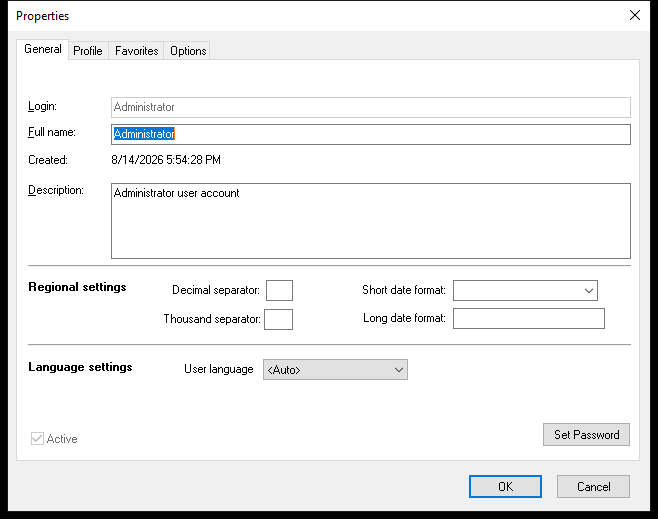 The General tab. Regional settings are blank, so Windows settings are used.
General
| Setting | What it does |
|---|---|
| Login | Your user name. Only an administrator can change it (in Enterprise Manager). |
| Full name | Your name as shown in the main window |
| Description | Optional notes about you or your role |
| Set Password | Change your password |
| Regional settings | Decimal separator, Thousand separator, Long date format and Short date format. Leave them blank to use your Windows settings – fill them in only if Datashop should show numbers and dates differently from the rest of your computer. |
| User language | The language used for names and descriptions of objects, when the project has translations |
Settings such as Active, Domain and Private folder are shown but can only be changed by an administrator.
Profile
| Setting | What it does |
|---|---|
| Private folder | Your personal workbook folder, if your administrator has created one. It replaces the Workbooks folder in your folder tree. |
| Startup workbook | The workbook that opens automatically when you open the project. Click the button next to it to choose a workbook, or the clear button to have none. See 4.3 Searching, Favorites and the Startup Workbook. |
| Profile picture | Your picture in the main window. Select from disk, Paste from clipboard or Clear. |
Favorites
Lists your Favorite objects. Remove the ones you no longer need.
Options
Under Fresh from the lab:
| Setting | What it does |
|---|---|
| Try nikolAI assistant | Turns on the nikolAI assistant for you. See 2.2 Getting Started with nikolAI. |
| Execute AI suggestions immediately | Clicking a nikolAI suggestion carries it out right away. When off, a click copies the suggestion into the request box so you can edit it first, and a double-click carries it out. You can also switch this in the nikolAI panel. |
Click OK to save your settings.