19.1 SQL Explorer
SQL Explorer runs SQL directly against your data warehouse and shows the result in a grid. Use it to look at the raw data behind a workbook, check a number, or try out a query. It's a tool for Datashop Expert users who know SQL.
[!WARNING] SQL Explorer runs any statement you type – also
UPDATE,DELETEorDROP– without asking, with the project's database connection. Only run statements you understand.
Opening SQL Explorer
| From | Opens |
|---|---|
| Main window cog menu → Tools → SQL explorer (Ctrl+Q) | An empty editor on the project's data warehouse – you can choose another data source |
| A workbook's Object Tree → right-click a data source table → Browse data... | The table's contents |
| View statistics → SQL Explorer | The SQL of a visual's calculation – see 6.5 View Dataset, Statistics and Errors |
| Drill-through to source records | The records behind a number – see 6.2 Drilling Down and Drilling Through. On a metric that uses materialized views, it also shows the materialization info and Current data – see 27.2 Materialized Dynamic Views and Caching |
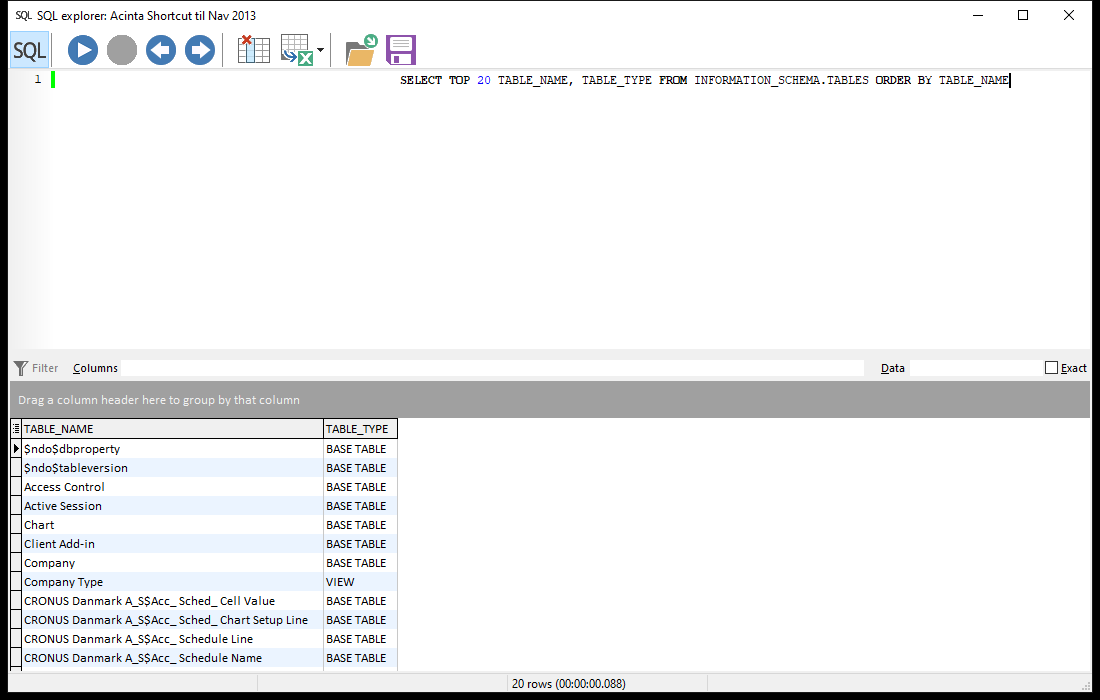 A query on the data warehouse with the result below.
Running a Query
- Type the SQL in the editor.
- Click the play button or press Ctrl+E. If you've selected part of the text, only that part runs.
- The result appears below, with the number of rows and the time it took in the status bar. Errors are shown with the line where they occurred.
Stop a long-running query with the stop button. Ctrl+P and Ctrl+N step through the queries you ran before.
Choosing the Data Source
New in build 20299 (Modeller) and build 20307 (Datashop).
A new, empty query has a data source box at the right of its toolbar. It lists the project's database data sources by database name – the audit log as Audit log (
Modeller's New query tab has the same box.
SQL Explorer opened for a particular object – browsing a table or fact, previewing a dynamic view, the statistics of a visual, a memory snapshot, the change log, or editing an SQL property in Modeller – stays on that object's data source. From build 20382 the box still shows that data source, greyed out; before, there was no box.
Working with the Result
- Columns (above the grid) shows only the columns whose names you type, comma-separated; Data finds and highlights values in all columns; Exact matches whole values only.
- The hide button hides columns that have the same value in every row.
- A pane below the grid shows the whole value of the selected cell, e.g. a long text or a stored SQL statement (build 20382 and later). Its scroll bars appear only when needed, and text without line breaks wraps (build 20386 and later). Drag the splitter above it to resize it.
- Select cells to see their sum in the status bar – click it to copy it.
- Export with the Excel button: Open in Excel or Save to CSV file.
- Save the SQL to a file, or load SQL from a file, with the folder and disk buttons.
The SQL button shows or hides the editor (Ctrl+Shift+S), e.g. to see more of the result.
Tips – SQL Explorer
- Use
TOP 100(or your database's equivalent) while you explore, so big tables don't take long to load. - Start from View statistics → SQL Explorer to see exactly what a visual asks the database.
Common Issues – SQL Explorer
Problem: SQL Explorer isn't in the menu. - Solution: It's in Datashop Expert's main window, under the cog menu → Tools.
Problem: The query fails with a syntax error. - Solution: SQL Explorer uses your data warehouse's own SQL dialect, e.g. SQL Server's T-SQL. Check the message for the line and position.